PageDrawer
Lets you write on any page anywhere.
This is a simple Chrome extension that allows you to inject a JavaScript canvas onto any webpage.
Philosophy
After beginning university, I found myself taking notes on my laptop more and more. However, I found that I was often switching between my notes and the webpage I was taking notes on. This was quite annoying and I thought that it would be great if I could just write on the webpage itself. This is how I came up with the idea for PageDrawer. A simple extension that allows you to write on any webpage. I was always frustrated with having to take out a separate piece of paper to write down a quick note or draw a diagram. I was doing some Calculus homework and thought to myself that it would be great if I could just write on the webpage itself, where the formula was. This is how I came up with the idea for PageDrawer. A simple extension that allows you to write on any webpage.
Designing the Extension
I began by researching how to create a Chrome extension. I found that it was quite simple to create one and followed Google’s tutorial to begin developing my extension.
I also had to do research on how to create a canvas and draw on it using JavaScript. This was done using 3 simple functions.
function down(e){
    isPainting = true;
    let rect = canva.getBoundingClientRect();
    startX = e.clientX - rect.x;
    startY = e.clientY- rect.y;
    canva.style.touchAction = "none";
    canva.addEventListener('pointermove', draw);
}
This function would detect when the initial mouse click was pressed and set the starting coordinates for the drawing. This also supports touchscreens.
function draw(e){
    if(!isPainting) {
        return;
    }
    let rect = canva.getBoundingClientRect();
    ctx.lineWidth = lineWidth;
    ctx.lineCap = 'round';
    ctx.lineTo(e.clientX - rect.x, e.clientY- rect.y);
    ctx.stroke();
}
This function would detect when the mouse was moved and draw a line from the starting coordinates to the current mouse.
function up(e) {
    isPainting = false;
    ctx.stroke()
    ctx.beginPath();
    addStroke(ctx.getImageData(0,0,document.documentElement.scrollWidth,document.documentElement.scrollHeight));
    canva.removeEventListener('pointermove', draw);
}
This function would detect when the mouse was released and stop drawing. It would also save the current canvas to a list. It would also remove the event listener for drawing, to prevent the canvas from drawing when the mouse was not pressed.
The rest of the implementation consisted of setting up the extension to inject the canvas onto the page and to remove it when the user wanted to stop drawing.
From then on, I implemented further features such as a color selector and an undo button.
The Undo button was implemented using a Stack data structure. Every time the user drew a stroke, the canvas data would be saved. If the user pressed the undo button, the canvas would be set to before the last stroke. The implementation is shown below.
function undoStroke(){
    if (size - 1 !== 0){
        size--;
        ctx.putImageData(undoStack[size],0,0);
        if (size > 0){ undoStack.pop(); }
        buffer = [];
    }
    else {
        ctx.putImageData(undoStack[0],0,0);
    }
}
This function would pop the last stroke from the stack and set the canvas to the previous stroke. Only if the size of the stack was greater than 1. If the size was 1, then the canvas would be set to the first stroke.
A buffer was needed to prevent the user from undoing the same stroke twice. The buffer would hold the last stroke and if the user drew another stroke, the buffer would be pushed to the stack and the buffer would be set to the new stroke. This would prevent the user from undoing the same stroke twice.
function addStroke(imageData) {
    buffer.push(imageData);
    if (buffer.length === 2){
        undoStack[size++] = buffer.shift();
    }
}
This function would add the current stroke to the buffer and if the buffer was full, it would push the last element in the buffer to the stack.
Challenges
One of the challenges I faced was the issue of sizing the canvas properly to fit very long pages and issues with scrolling. I fixed this by setting the drawable area of the canvas to be the bounding client rectangle of the page and setting the canvas to be fixed. This allowed the canvas to be drawn on without scrolling issues.
When implementing the undo button I ran into the problem of the button not working properly. I resolved this by implementing a buffer to prevent the user from undoing the same stroke twice. This buffer would hold the last stroke and if the user drew another stroke, the stroke in the buffer would be pushed to the stack and the buffer would be set to the new stroke.
Another challenge was lag, as the canvas would often lag behind the mouse and glitch on very large pages. I resolved this by optimizing the canvas and only drawing the strokes that were visible on the screen, the overflow attribute of the canvas element was set to hidden to prevent the strokes from being visible outside the canvas. This greatly improved performance.
How to use
Begin by clicking the extension. This will inject a JavaScript canvas that covers the entire page and brings up a color selector along with an undo button.
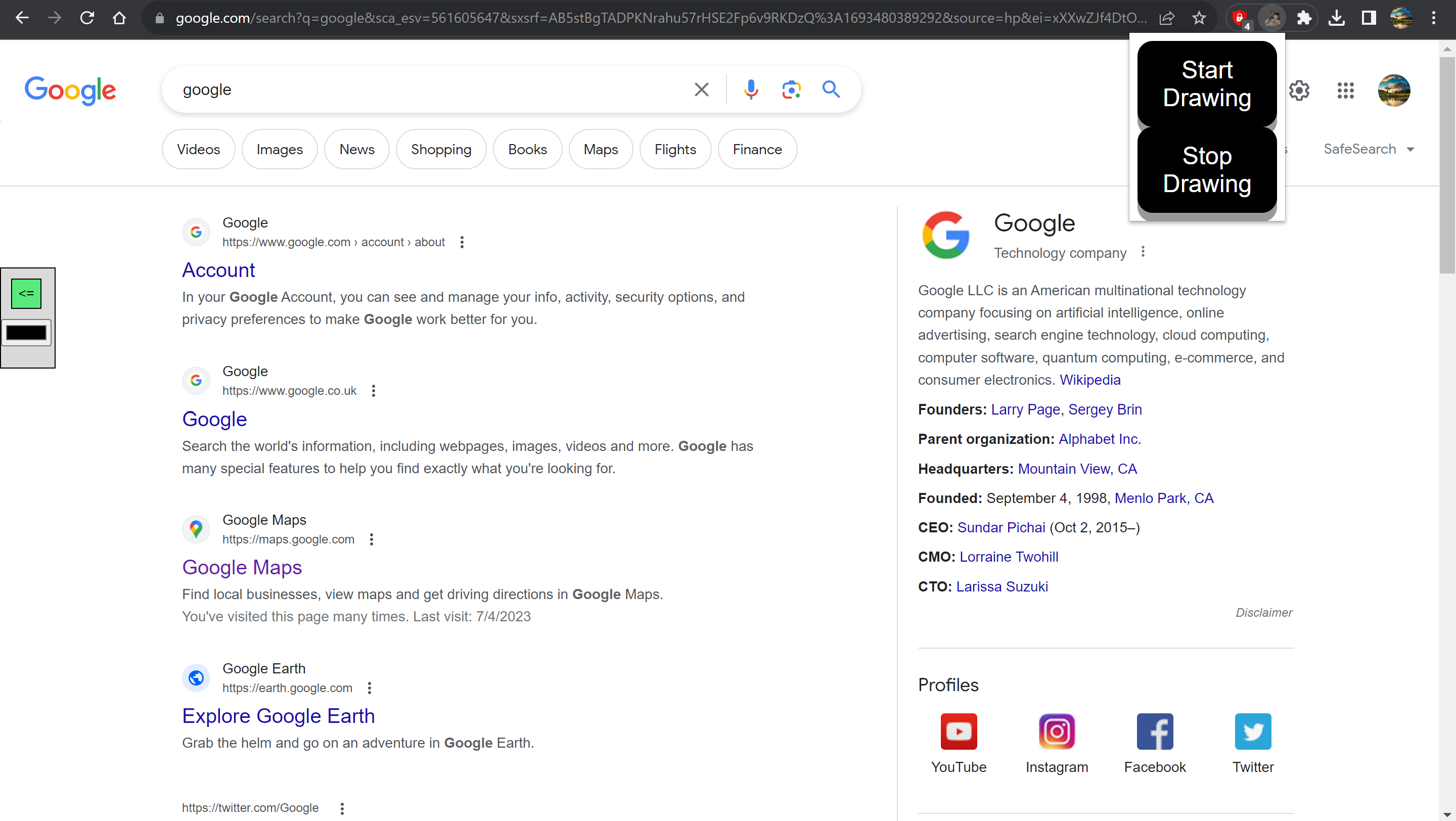
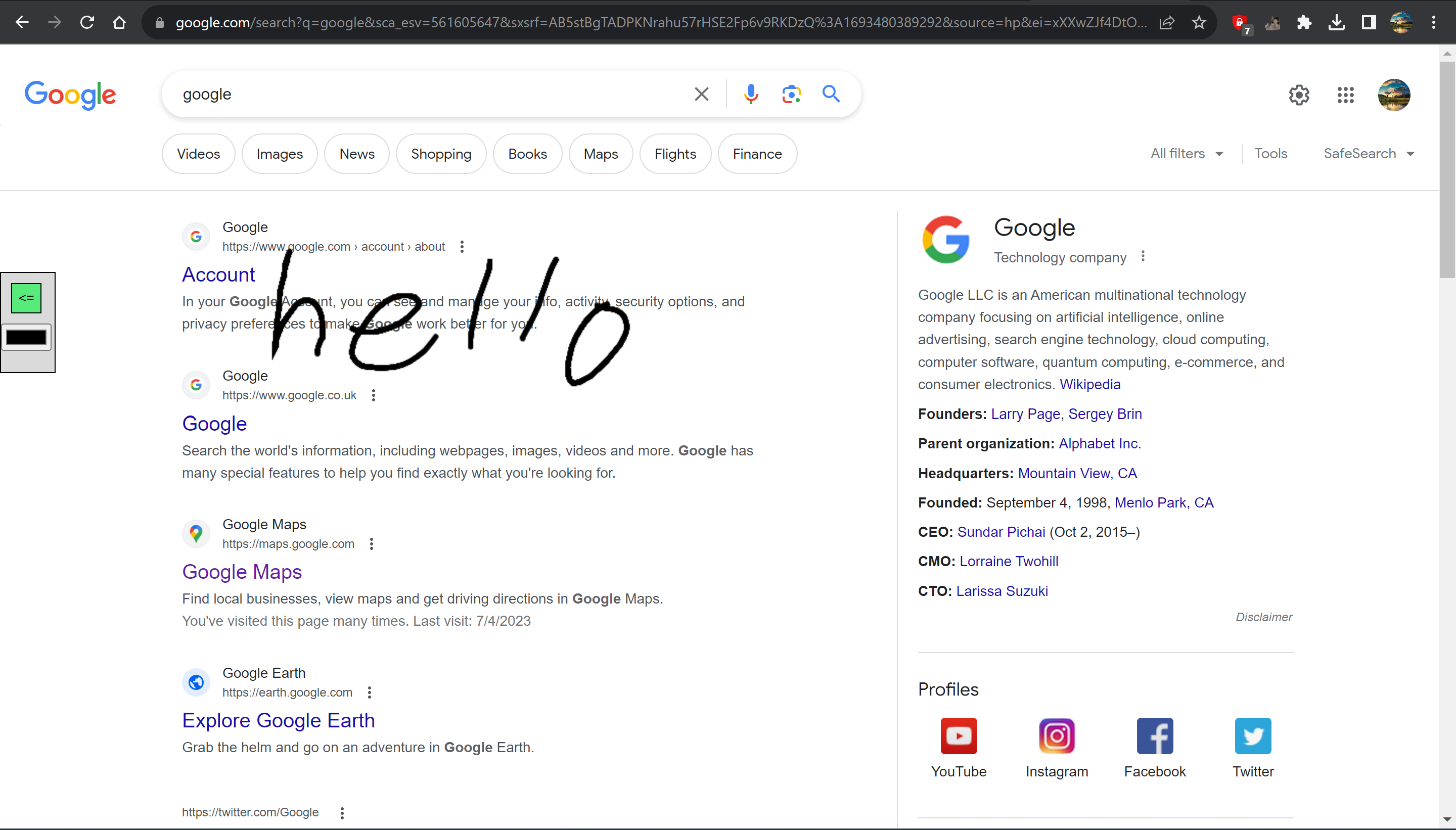
Now simply click and drag on the screen to start drawing. The extension also supports touchscreen devices.
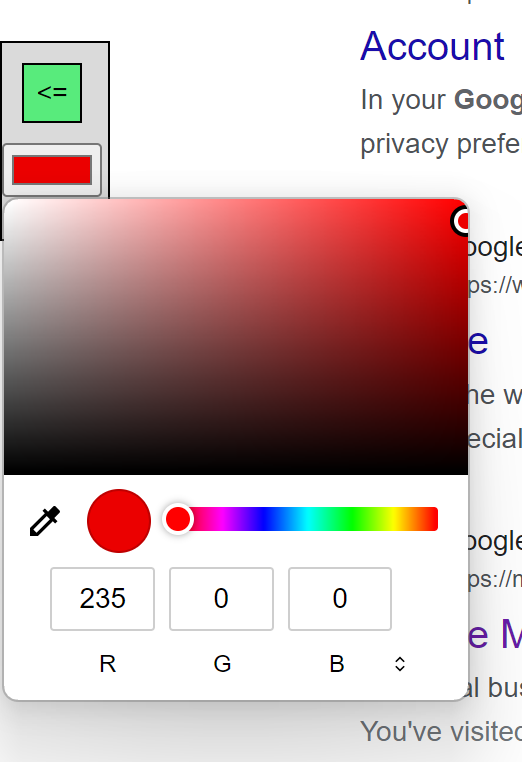
Click the Color Selector button to switch colors.
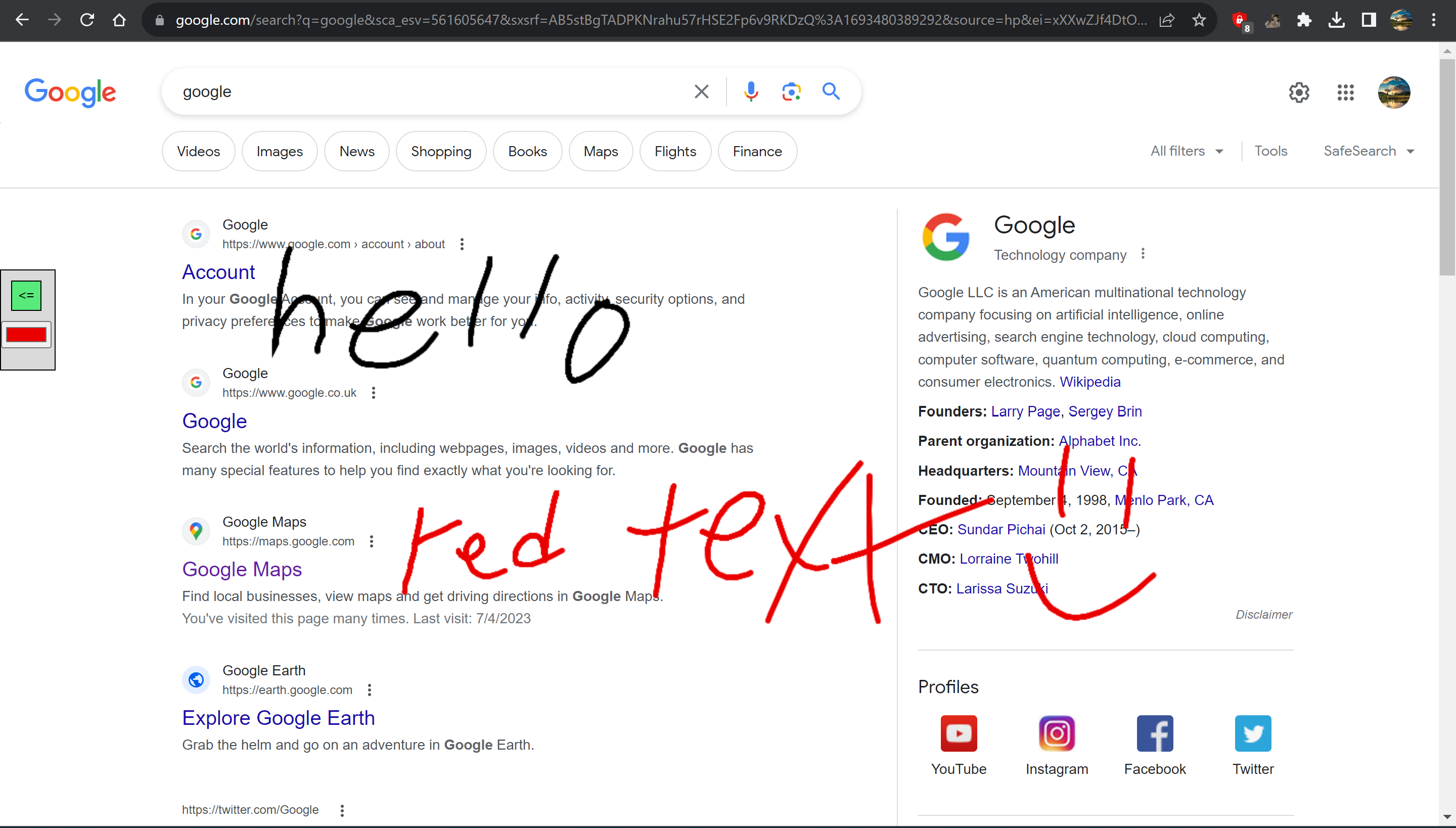
Click the Undo button to undo a stroke. To stop drawing, simply click the extension button and select stop drawing. The canvas will disappear but your changes will be saved. To resume drawing, simply click the extension buttons and select start drawing. The canvas will reappear with all the previous notes.
To discard everything, refresh the page.
Future Plans
There are a few kinks that I would like to work out. It doesn’t render very well on pdf’s opened in the browser. I would also like to be able to save the notes locally so that they can be accessed later perhaps in pdf form so that the notes and the site they were taken on can be saved. I also plan to convert the canvas injection into an HTML shadow node so that it doesn’t interfere with the page’s elements, which will resolve a great many bugs.
Future features I would like to add include: a text tool, a highlighter tool, and a save tool.
This was a fun and simple project that has provided a real life use case for me. I also have learned a lot about developing chrome extensions and working with the HTML canvas..